
Report Properties and Content
Applies to: viflow (subscrition | 10 | 9 | 8) | Article: 3612557 | Updated on 07.08.2026
{{gold}}This function is available in the viflow gold edition (not in viflow blue and silver).{{end}}
The reports and outputs stored in viflow can be manually configured or restricted in terms of the content to be displayed. By default, all fields and data available for the respective report are displayed. If you do not need certain fields or data in the reports, you can customize them and save them in different variants.
How to customize the content of reports
- Open the Reports window by clicking Windows – Reports on the View tab.
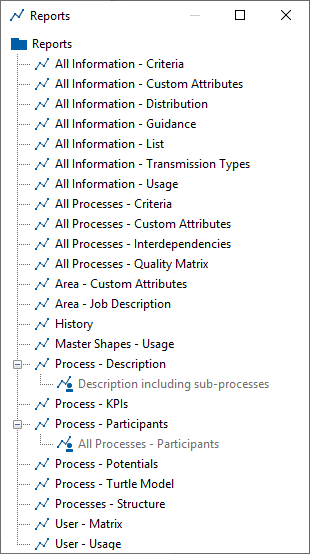
- Right-click [
.png) ] on the report to be edited and select New from the context menu.
] on the report to be edited and select New from the context menu.
- Name the new report.

It will be displayed below the copied standard report.
Right-click on the new report and select Properties from the context menu.
 The report properties window opens.
To customize the report, first make the basic settings in the General tab.
 For example, specify the output format here or whether the report should be integrated into the WebModel. The available options vary depending on the report type and content.
- Open the Configuration tab to see all the contents of the report.
 Here you can specify which properties should appear in the report. To do this, click in the respective field and select Yes or No.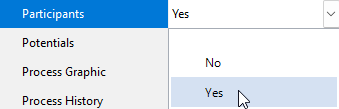
- viflow subscription only: If necessary, assign permissions for editing and using the report.
Open custom reports
If you have created customized reports, they will appear for selection when you open the report on which they are based.
- You can access the reports or profiles directly from the context menu [
 ] of the objects in the corresponding windows.
  To do this, right-click on the object and select the Reports entry.
 - Of course, the reports/profiles can also be accessed via the viflow Reports menu.

Include reports in the WebModel
It is possible to integrate important reports, such as the process description, into the WebModel and call them up directly from there.
- Open the Reports window by clicking Windows – Reports on the View tab.
- Right-click [
.png) ] to the report that is to be included in the WebModel and select Properties from the context menu.
] to the report that is to be included in the WebModel and select Properties from the context menu. - On the General tab, click in the Include in WebModel field and select Yes.
 The report is saved in the WebModel after the next export and can be called up there in the Reports tab.