Create users and/or import from Active Directory
Applies to: viflow (subscription | 10 | 9 | 8) | Article: 3823266 | Updated on 11.08.2026
This article explains how to create or can be imported from an Active Directory (NOT Azure AD!) into viflow.
Create new users (manually)
Please proceed as follows:
- Open the User window.
To do this, click on Window – User in the View tab. - Right-click in the window and select New – User from the context menu.
 You can also create a folder here to organize the users.
 - Enter the name of the new user directly in the window.
 Confirm your entry by pressing Enter.
The new user has been created. - To view detailed user data, open the user's properties:
Right-click on the user and select Properties from the context menu. The properties window opens.
 - Under Miscellaneous, complete the new user's information if necessary.
 If desired, you can define the user's permissions in the Member of and Permissions tabs.
Import users and groups from Active Directory
If your computer is connected to an Active Directory, viflow detects this automatically. Users or user groups can be imported directly from AD into viflow. Any changes to the AD records are automatically reflected and displayed in viflow.
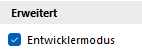
- In the Active Directory group of the Developer tab of the viflow menu, click Import Users {{1}}.
 Alternatively, you can also select AD groups and import them into viflow by clicking on Import groups {{2}}.
The procedure described below is the same, only the window is labelled "Import Groups". - In the Import Users window, you can select either the entire Active Directory, branches in the structure, or individual entries from {{3}}.
 If you are looking for specific entries or folders, use the Filter tab and enter the relevant search terms or parts thereof {{4}}.
 Finally, confirm with OK; the users will be imported.